Basic drawing in Pycairo
Categories: pycairo
Pycairo is a Python library for creating high-quality vector graphics. It is based on the Cairo library, a C drawing library. Pycairo provides Python bindings for the Cairo library, so it can be called from Python code.
The library allows us to define an image by specifying the exact position of objects such as lines, shapes, and text. Images can be stored as PNG, PDF, SVG, or PostScript. PNG is a raster image format, which means the image is stored as pixel data. The other formats are vector formats, which means the images can be rescaled without loss of detail.
In this article, we will learn the basics of drawing in Pycairo. We will also look at how to set the size of your drawing. To follow this tutorial, you will need Pycairo installed on your system.
Making an image with Pycairo
To make an image with Pycairo, we must first create a Pycairo surface. A surface can be thought of as being the digital equivalent piece of paper that you can draw on.
We then create a Pycairo context, which is the thing that draws on the paper. Using the paper analogy might think of it as being like a pencil, although it is actually a bit more than that. The context draws entire shapes, and also controls how those shapes are outlined and filled.
When the drawing is complete, we use the surface to create an output file, which can be a pixel image (in PNG format) or a vector image (in PDF, SVG, or PostScript format).
So there are 4 basic steps to creating an image:
- Create a Pycairo surface to hold your drawing
- Create a Pycairo context that you use to draw with
- Draw your shapes using the methods of the context object
- Save the surface to a file
Creating the surface and context
Here is how we create a surface:
surface = cairo.ImageSurface(cairo.FORMAT_RGB24, 300, 200)
This creates an ImageSurface (a type of Surface that is used to create PNG images). It is set to use RGB data, and given a width of 300 pixels and a height of 200 pixels.
Here is how we create a context:
ctx = cairo.Context(surface)
The context belongs to the surface, so we need to create the surface first.
Drawing using the context
We use the context to draw shapes. Here is an example, drawing a rectangle:
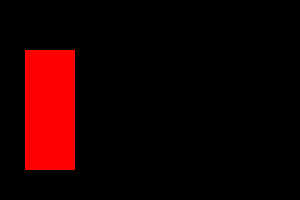
ctx.rectangle(25, 50, 50, 120)
ctx.set_source_rgb(1, 0, 0)
ctx.fill()
First, we define a rectangular path. A path defines a shape but doesn't actually draw it (that comes next). The rectangle function takes 4 parameters:
ctx.rectangle(x, y, width, height)
x and y set the position of the top left corner of the rectangle, relative to the top left corner of the image. The width and height set the size of the rectangle. By default, these are all measured in pixels.
set_source_rgb takes 3 values in the range 0.0 to 1.0. These values specify the red, green and blue values of the colour that will be used for the next drawing operation. In this case, (1, 0, 0) gives pure red.
Next, fill fills the current path (the rectangle) with the current colour (red). fill also clears the current path.
We can draw more shapes, using similar code. When we have finished drawing, we save our image as a PNG file:
surface.write_to_png('rectangle.png')
Here is the image. The default background is black (we will change that soon), our code created the red rectangle:
Here is the full code:
import cairo

surface = cairo.ImageSurface(cairo.FORMAT_RGB24, 300, 200)
ctx = cairo.Context(surface)

ctx.rectangle(25, 50, 50, 120)
ctx.set_source_rgb(1, 0, 0)
ctx.fill()

surface.write_to_png('rectangle.png')
Drawing the outline
Instead of filling a path, we can draw a line around it (in computer graphics, this is called stroking the shape). Or we can do both - fill it and outline it. Here is the image we are going to create:
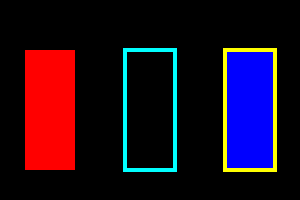
The left (red) rectangle is the one we created before. The middle rectangle is outlined in cyan. Here is how we do it:
ctx.rectangle(125, 50, 50, 120)
ctx.set_source_rgb(0, 1, 1)
ctx.set_line_width(4)
ctx.stroke()
The rectangle function has a different x value (125), so the rectangle is drawn in a different place. We also set_source_rgb to a different colour, (0, 1, 1), which is cyan.
Before drawing a line, we need to call set_line_width to say how wide the line should be. Then we use stroke to outline the rectangle. The rectangle isn't filled in, so the black background shows through.
Here is how we fill and stroke a shape:
ctx.rectangle(225, 50, 50, 120)
ctx.set_source_rgb(0, 0, 1)
ctx.fill_preserve()
ctx.set_source_rgb(1, 1, 0)
ctx.set_line_width(4)
ctx.stroke()
We have, again, changed the rectangle position and colours - blue for the fill and yellow for the outline. Then we fill and stroke the shape as two separate operations, in a similar way to the previous two rectangles.
There is just one small difference. As mentioned above, calling fill or stroke deletes the current path. So if we called fill to fill the rectangle and called stroke to outline it, the stroke wouldn't appear - the rectangle path has been deleted, so there is nothing to stroke (that isn't an error, the stroke function would just do nothing).
To get around this, we use fill_preserve, which fills the path without deleting it.
Here is the full code:
import cairo

surface = cairo.ImageSurface(cairo.FORMAT_RGB24, 300, 200)
ctx = cairo.Context(surface)

ctx.rectangle(25, 50, 50, 120)
ctx.set_source_rgb(1, 0, 0)
ctx.fill()

ctx.rectangle(125, 50, 50, 120)
ctx.set_source_rgb(0, 1, 1)
ctx.set_line_width(4)
ctx.stroke()

ctx.rectangle(225, 50, 50, 120)
ctx.set_source_rgb(0, 0, 1)
ctx.fill_preserve()
ctx.set_source_rgb(1, 1, 0)
ctx.set_line_width(4)
ctx.stroke()

surface.write_to_png('3rectangles.png')
Initialising the context
At this stage, it is worth looking at the initialisation code again to add a couple of useful features.
One useful thing is to scale the page. Up until now, everything has been scaled in pixels. It can be more intuitive to measure the page in "units" of our own choosing. You could think of them as inches or cm if it is a picture, or kilometres if you are drawing a map, or anything you want. For this example, we will use inches and create a small (2 by 3 inch) image.
We then need to decide how our units relate to pixels. Let's say 1 unit equals 100 pixels. This makes our image 300 by 200 pixels. Here is the scaling code:
WIDTH = 3
HEIGHT = 2
PIXEL_SCALE = 100

surface = cairo.ImageSurface(cairo.FORMAT_RGB24,
                             WIDTH*PIXEL_SCALE,
                             HEIGHT*PIXEL_SCALE)
ctx = cairo.Context(surface)
ctx.scale(PIXEL_SCALE, PIXEL_SCALE)
Here, the surface size is defined by the pixel size (the pixel width is the WIDTH times the PIXEL_SCALE). Then we use the scale function to scale the Pycairo coordinates by PIXEL_SCALE, so now everything is measured in our custom units. We must adjust our drawing code to take account of that (all our coordinate values need to be 100 times smaller). Here is how we draw the first rectangle:
ctx.rectangle(0.25, 0.5, 0.5, 1.2)
ctx.set_source_rgb(1, 0, 0)
ctx.fill()
The other thing we might want to do is set the background colour - we won't usually want it to be black. We can do this by drawing a rectangle the full size of the page and filling it with our chosen colour. This code uses light blue, but you might often prefer white:
ctx.rectangle(0, 0, WIDTH, HEIGHT)
ctx.set_source_rgb(0.8, 0.8, 1)
ctx.fill()
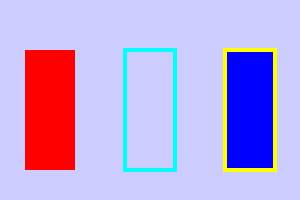
The background must be drawn first, before you draw anything else. Here is the full code, with scaling and background:
import cairo

WIDTH = 3
HEIGHT = 2
PIXEL_SCALE = 100

surface = cairo.ImageSurface(cairo.FORMAT_RGB24,
                             WIDTH*PIXEL_SCALE,
                             HEIGHT*PIXEL_SCALE)
ctx = cairo.Context(surface)
ctx.scale(PIXEL_SCALE, PIXEL_SCALE)

ctx.rectangle(0, 0, WIDTH, HEIGHT)
ctx.set_source_rgb(0.8, 0.8, 1)
ctx.fill()

ctx.rectangle(0.25, 0.5, 0.5, 1.2)
ctx.set_source_rgb(1, 0, 0)
ctx.fill()

ctx.rectangle(1.25, 0.5, 0.5, 1.2)
ctx.set_source_rgb(0, 1, 1)
ctx.set_line_width(0.04)
ctx.stroke()

ctx.rectangle(2.25, 0.5, 0.5, 1.2)
ctx.set_source_rgb(0, 0, 1)
ctx.fill_preserve()
ctx.set_source_rgb(1, 1, 0)
ctx.set_line_width(0.04)
ctx.stroke()

surface.write_to_png('scaled.png')
Notice that every measurement is in our units, even the line width (now 0.04 units rather than 4 pixels).
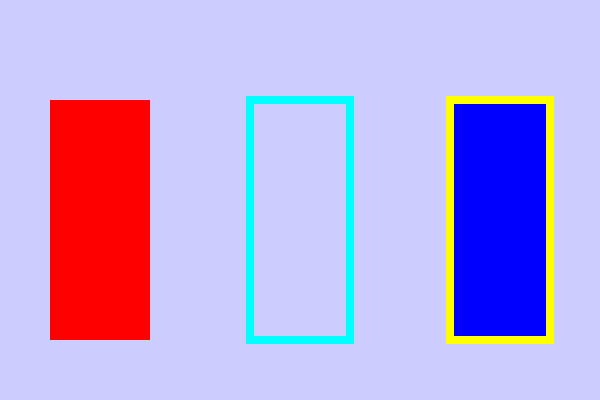
One big advantage of using this technique is that, if you want to change the image size, you just need to change PIXEL_SCALE. For example, if you set it to 200, you will get the exact same image, just twice as big:
Related articles
Join the GraphicMaths/PythonInformer Newsletter
Sign up using this form to receive an email when new content is added to the graphpicmaths or pythoninformer websites:

Popular tags
2d arrays abstract data type and angle animation arc array arrays bar chart bar style behavioural pattern bezier curve built-in function callable object chain circle classes close closure cmyk colour combinations comparison operator context context manager conversion count creational pattern data science data types decorator design pattern device space dictionary drawing duck typing efficiency ellipse else encryption enumerate fill filter for loop formula function function composition function plot functools game development generativepy tutorial generator geometry gif global variable greyscale higher order function hsl html image image processing imagesurface immutable object in operator index inner function input installing integer iter iterable iterator itertools join l system lambda function latex len lerp line line plot line style linear gradient linspace list list comprehension logical operator lru_cache magic method mandelbrot mandelbrot set map marker style matplotlib monad mutability named parameter numeric python numpy object open operator optimisation optional parameter or pandas path pattern permutations pie chart pil pillow polygon pong positional parameter print product programming paradigms programming techniques pure function python standard library range recipes rectangle recursion regular polygon repeat rgb rotation roundrect scaling scatter plot scipy sector segment sequence setup shape singleton slicing sound spirograph sprite square str stream string stroke structural pattern symmetric encryption template tex text tinkerbell fractal transform translation transparency triangle truthy value tuple turtle unpacking user space vectorisation webserver website while loop zip zip_longest